
On this page
One in three employees in Germany could still reach their former employer's digital resources after leaving, and more than half of them kept using that access. That is the result of a survey by market research firm Censuswide among 2,000 full-time employees.
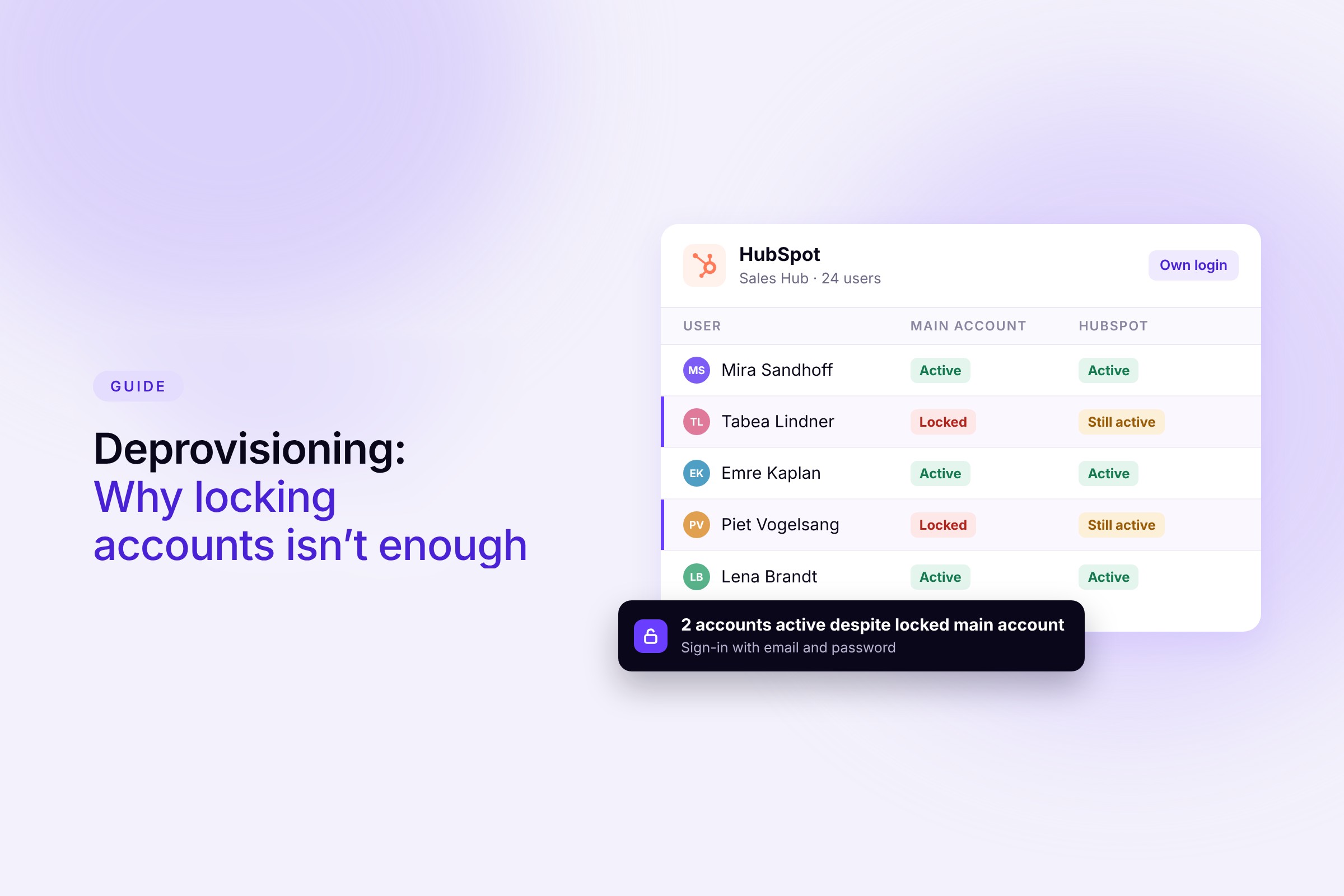
Carelessness is rarely the reason. In most companies, the Google or Microsoft account gets locked on time, and with that the exit counts as done. What stays open is everything that is not tied to that account. The design tool with its own password is one example, the shared login for the social media tool another, and so is the API key that keeps running in the background.
Key takeaways
- Deprovisioning means taking back all accounts, permissions and licenses when an employee leaves.
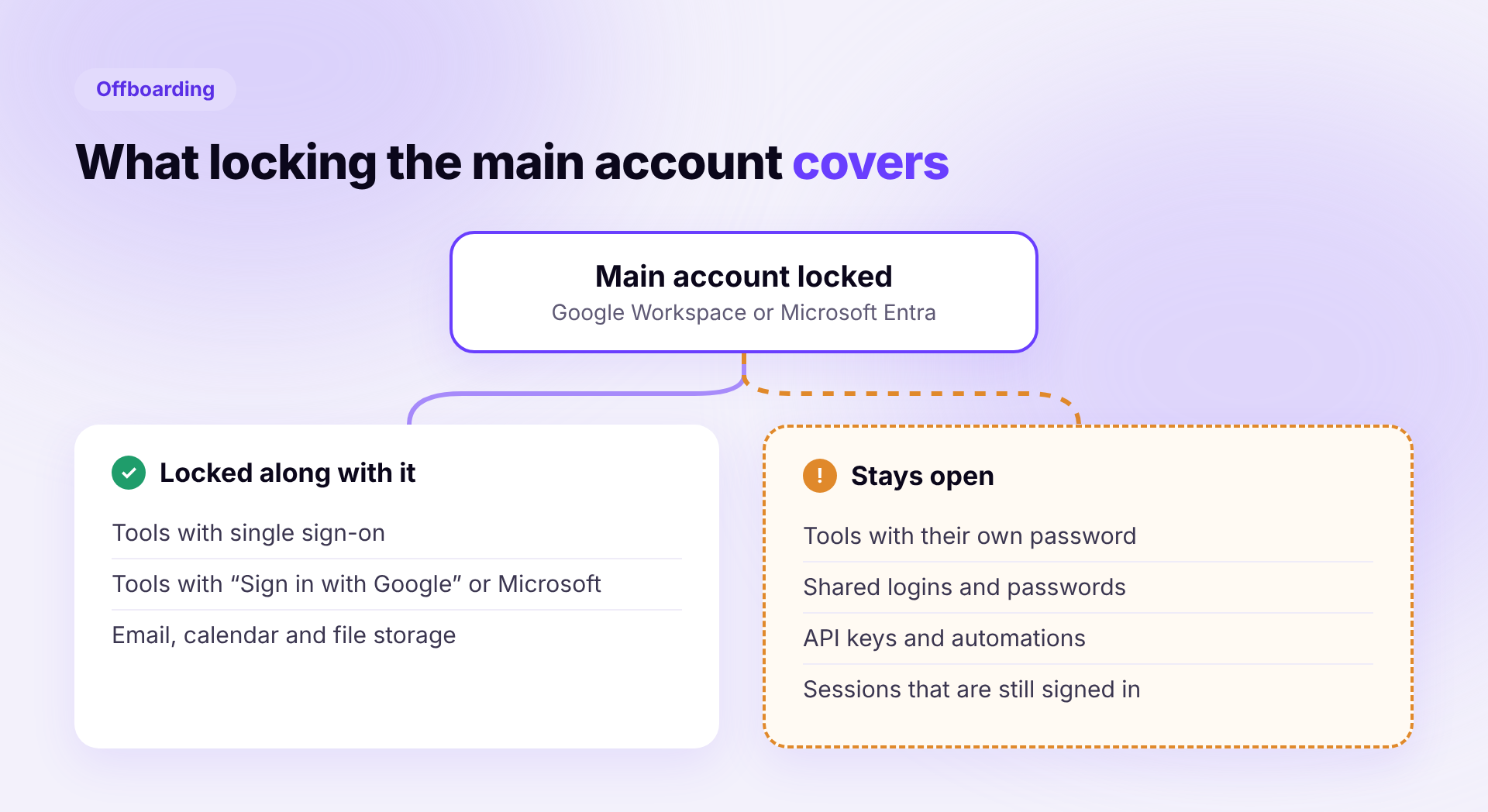
- Locking the main account only affects tools that are connected through single sign-on.
- Hardly any mid-sized company runs this fully automatically. In most tools, a person removes the access in the end.
- What makes the difference is a complete access list with an owner and a deadline for every tool.
What deprovisioning means
When employees join, they get accounts, roles and licenses. This is called provisioning. Deprovisioning is the way back at the end of the employment. It is one part of offboarding, not all of it. Device returns, handover and the reference letter are covered in our offboarding checklist.
You are only done when the person can no longer sign in anywhere, their data and admin roles sit with someone else, and the freed-up license has been reassigned or canceled.
Why access stays open
Locking an account takes a minute per tool. The hard part is the question before that, namely where the person has an account in the first place. A company with 100 employees quickly ends up with several dozen tools, and IT only knows some of them. We see four causes again and again.
Tools with their own login. Anyone who signs in with email and password still gets in after the main account is locked.
Self-purchased software. Teams book tools with the company card or on a free plan. This shadow IT is on nobody's list.
Shared access. A password that five people know stays the same after someone leaves.
No follow-up. The task goes out by email or chat, and nobody checks whether it was done.
What can be automated and what cannot
Many vendors promise offboarding at the push of a button. Technically, that only holds for some of your tools.
Access is locked automatically when the tool is connected to your central login. If you lock the account in Google Workspace or Microsoft Entra, the person can no longer get in there. Their user account inside the tool usually remains, though, and keeps occupying a license. For that account to disappear on its own, the tool needs an interface called SCIM. Many vendors only unlock it in their expensive plans.
For all other tools, two options remain. Someone on your team removes the access by hand, or you hire a service provider. The provider takes work off your plate, but needs admin rights in every single tool and usually only covers a limited selection.
In practice, this comes down to a mixed process. Part of it is handled through the main account, the rest are tasks for people. It only becomes reliable once each of these tasks has an owner and a deadline.
Three types of access
One point is often overlooked in the first group. If the person is still signed in to a tool, that session often stays alive until it expires on its own. For tools with customer, financial or HR data, you should therefore also sign the person out or remove them directly in the tool.
The order on the last working day
- Finalize the access list. A few days ahead, it is clear which tools the person uses and who is responsible for each.
- Hand over admin roles and content. Transfer first, then lock. Otherwise a tool is left without an admin or files get lost.
- Lock the main account. At the end of the last working day. Deletion comes later.
- Revoke the remaining access. Tools with sensitive data first, then the rest. Change shared passwords the same day.
- Free up licenses and check again. After a week, one person goes through the list and closes whatever is still open.
In case of a termination without notice or a garden leave, you move steps 3 and 4 to the front. An admin then takes care of the handover afterwards.
Template for the access list
The template lists all tools per employee with type of access, owner, deadline and status. One more column records whether the license was reassigned or canceled. That way you see at a glance what is still open, and you have proof at hand for an audit.
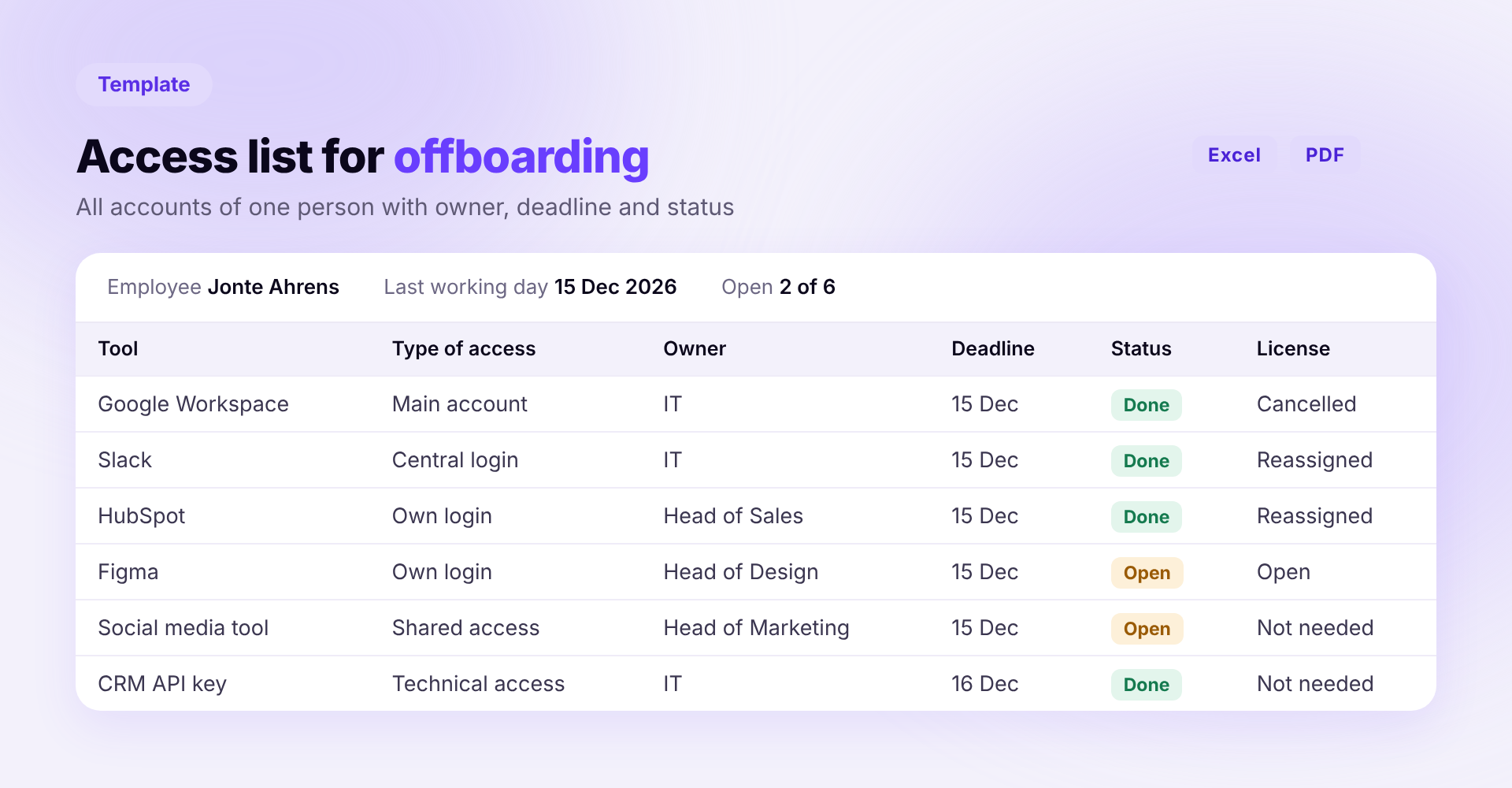
You can download it without signing up.
- Access list as Excel with dropdowns for type, status and license. The file counts open accounts on its own.
- Access list as PDF to print and tick off.
How Sovaro helps
Sovaro knows the tools and licenses of every employee. That includes software teams booked themselves and tools you built in-house. When someone leaves, this becomes the access list, and every owner gets their task with a deadline. Your team still removes the access in each tool. Sovaro shows what is done and what is still open, and documents every step. Try it for free
Frequently asked questions
See Sovaro with your own data.
Connect Google Workspace or Microsoft Entra and see your devices, apps, and licenses in minutes.
14-day free trial, no payment details required. Cancel monthly.