
On this page
Software costs grow quietly. Each tool only costs a few euros per user per month, so nobody questions it. Added up, SaaS subscriptions have long become a major cost block, and a noticeable share of them delivers nothing.
According to the 2026 SaaS Management Index by Zylo, based on more than 40 million licenses, 46 percent of licenses go unused in a typical 30-day period. The data comes mostly from larger companies. The causes are the same in SMBs, and often there is nobody who keeps track of all tools.
Key takeaways
- Almost every company pays for licenses nobody uses. Most of them are accounts of former employees, oversized plans and duplicate tools.
- You spot unused licenses by their last activity, not by the invoice.
- Renewal is the moment that matters. With annual contracts for Microsoft 365, Google Workspace or Adobe, you can usually only reduce the license count then.
- After the first review, a short quarterly check and a look before each renewal are enough.
What are unused licenses?
An unused software license, also called shelfware, is a paid seat that nobody has used for a longer period. This also includes licenses that are bigger than needed, such as a Pro plan for someone who would be fine with the basic plan. This is called over-licensing.
The goal is not to have as few licenses as possible. If you have more users than licenses, a software audit can lead to costly back payments. Every paid license should sit with someone who actually needs it. That is what license optimization means, a core part of SaaS management.
Why unused licenses go unnoticed
The invoice shows a total, not how many of the paid seats are actually used. On top of that, there are four typical reasons.
Costs are scattered. Some tools are paid by invoice, some with team company cards, some even through expenses.
Offboarding stops halfway. Usually only the Microsoft or Google account gets blocked. Tools with their own login keep running. According to Torii's 2026 SaaS Benchmark, about 2.5 percent of all paid seats are still assigned to people who left long ago.
Nobody owns it. IT sees who has which access. Finance sees what gets paid. Often nobody sees both together, and that is exactly where the costs pile up.
Trials turn into subscriptions. Teams test a tool, it keeps running, and at some point nobody uses it anymore. More on this in our article on shadow IT.
How to spot unused licenses
Almost every SaaS tool shows in its admin console when a user was last active. In the Microsoft 365 admin center, you find this under Reports and Usage. Watch out for these signals.
- No activity for 60 to 90 days
- Accounts of former employees
- Duplicate tools for the same purpose, such as two video tools or several password managers
- Oversized plans, for example the full Creative Cloud for someone who only edits PDFs
- More purchased than assigned licenses, added "just in case" at the last renewal
Rule of thumb for wasted license costs
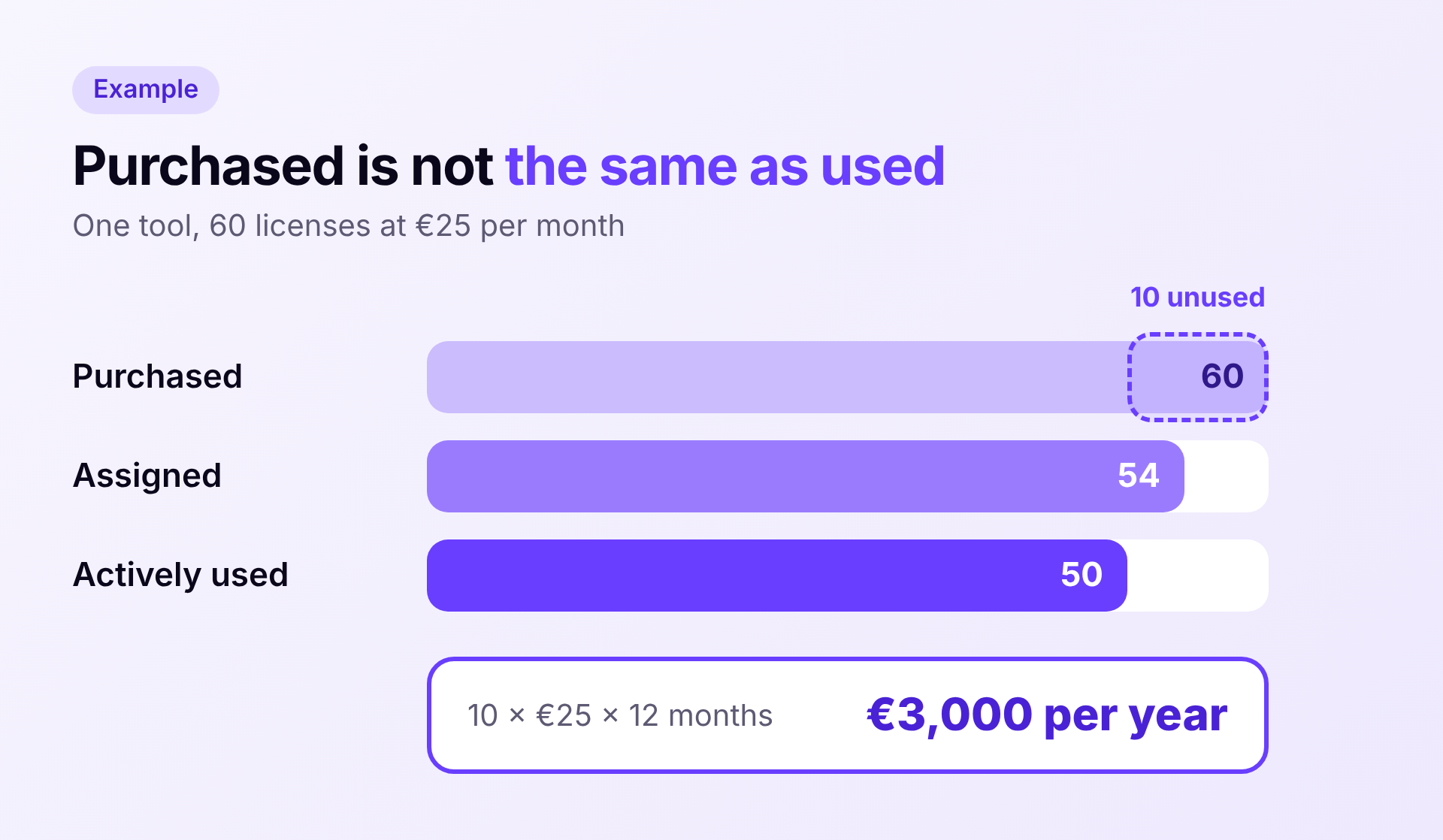
(purchased licenses minus active users in the last 90 days) × price per license per month × 12
If a tool costs €25 per user per month and 10 of 60 licenses are unused, you pay €3,000 a year for nothing. With 30 or 40 tools, that quickly adds up to five figures.
Why login data alone is not enough
Many companies check usage through their identity provider, such as Microsoft Entra ID, Google or Okta. That only shows part of the picture.
- A login is not usage. Sessions often stay active for weeks. The last sign-in says little about whether someone uses the tool daily or not at all.
- Many tools are not connected to SSO. Single sign-on is often only included in expensive plans. Everything below has its own login and is missing from the identity provider.
- Desktop apps run locally. The identity provider only sees the sign-in, not what happens afterwards. Whether someone really opens Adobe or a developer tool stays invisible to it.
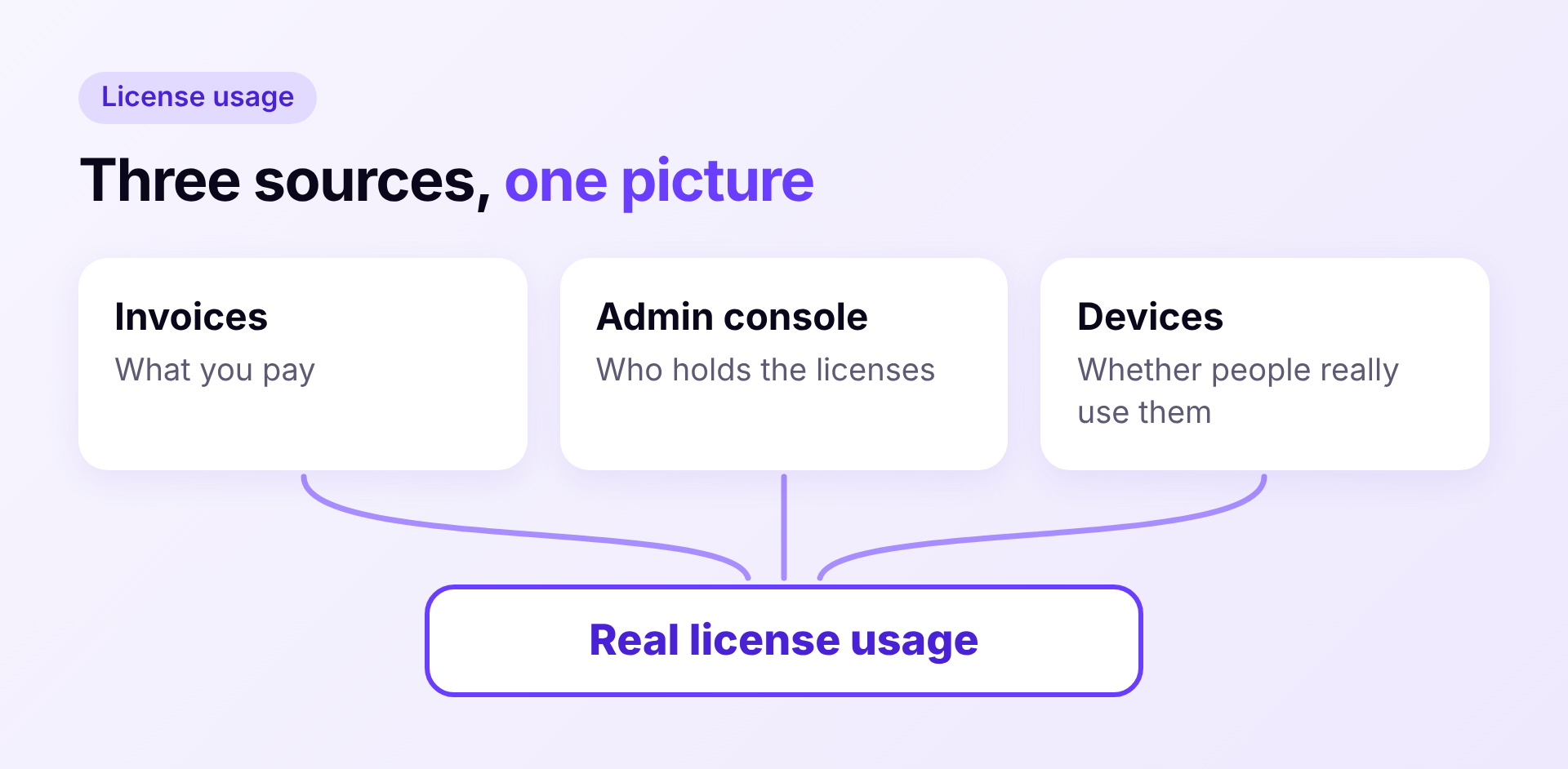
A reliable picture only comes from three sources. Invoices show what you pay. The admin console shows who holds the licenses. Devices show whether people really work with them.
License review in 5 steps
1. Collect all software costs
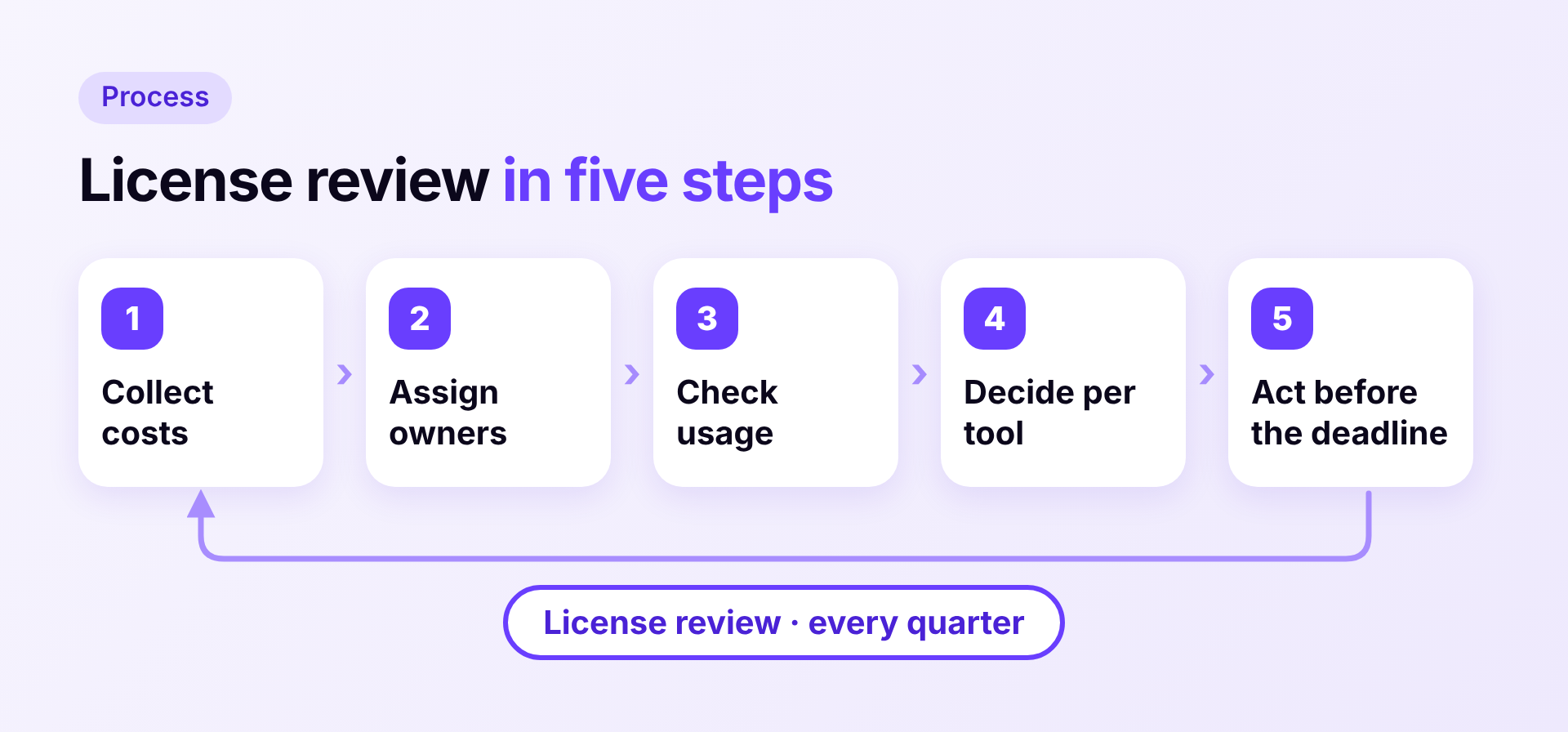
Go through invoices, card statements and expenses from the last twelve months. Accounting is the fastest route. You end up with a list of all tools, including the ones IT never knew about.
2. Give every tool an owner
One person per tool decides who gets a license and whether to renew, usually the team lead. Note the plan, number of licenses, price, term and notice period.
3. Check usage
Compare purchased, assigned and actively used licenses. Be careful with tools that are only needed occasionally, for example for year-end closing. Ask the owner before you cancel.
4. Decide per tool
If a license cannot be cancelled right away, give it to a colleague who would otherwise need a new one.
5. Act before the deadline
This is where you actually save. With many annual contracts, you can only increase the number of licenses during the term, not reduce it.
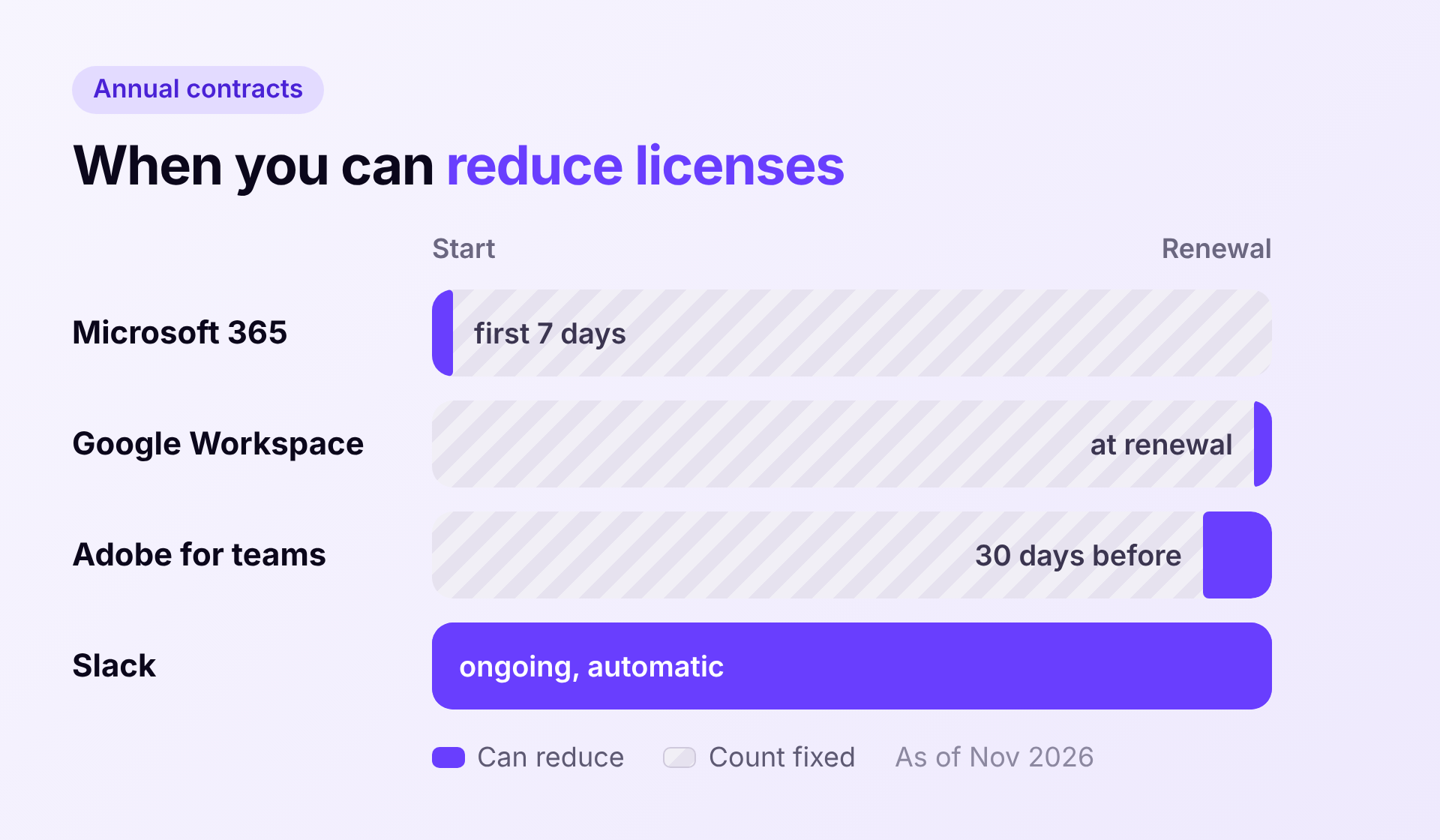
In Germany, the consumer rule that contracts must be cancellable monthly after the minimum term does not apply between businesses. If a B2B contract renews automatically for another year, that is usually valid. So put every notice period in your calendar 60 to 90 days ahead.
After that, a short quarterly check, a look before each renewal and a clean process for every employee exit are enough. What that involves is covered in our offboarding checklist.
How Sovaro helps
Sovaro shows you in one place which tools you pay for, who uses them and when the next contract renews. The Sovaro agent detects actual usage on devices, including tools without SSO and desktop apps. So you see unused licenses before the next renewal comes around. Try it for free
Frequently asked questions
See Sovaro with your own data.
Connect Google Workspace or Microsoft Entra and see your devices, apps, and licenses in minutes.
Free up to 10 employees. From 11 employees, 14-day free trial without payment details.