
On this page
Most teams roughly know which tools they pay for. Which of them are actually used, by whom and with which account, hardly anyone knows. And whatever nobody set up doesn't show up on any list. That's exactly where shadow IT starts.
Why that happens and what it costs is covered in our guide Shadow IT and Shadow AI. This post is about practice: how to make visible with Sovaro which tools are in use, and what to do with what you find.
Key takeaways
- A login report from Google or Microsoft only shows part of your tools. Sovaro also detects usage on company devices and reads your invoices.
- The IT admin reviews new findings and decides: approve, ignore or not allow. Nothing is blocked automatically.
- When recording usage, Sovaro sees which tool is used, not what happens inside it.
Sovaro connects detected app usage with your invoices. That shows you which tools are in use and what they cost.
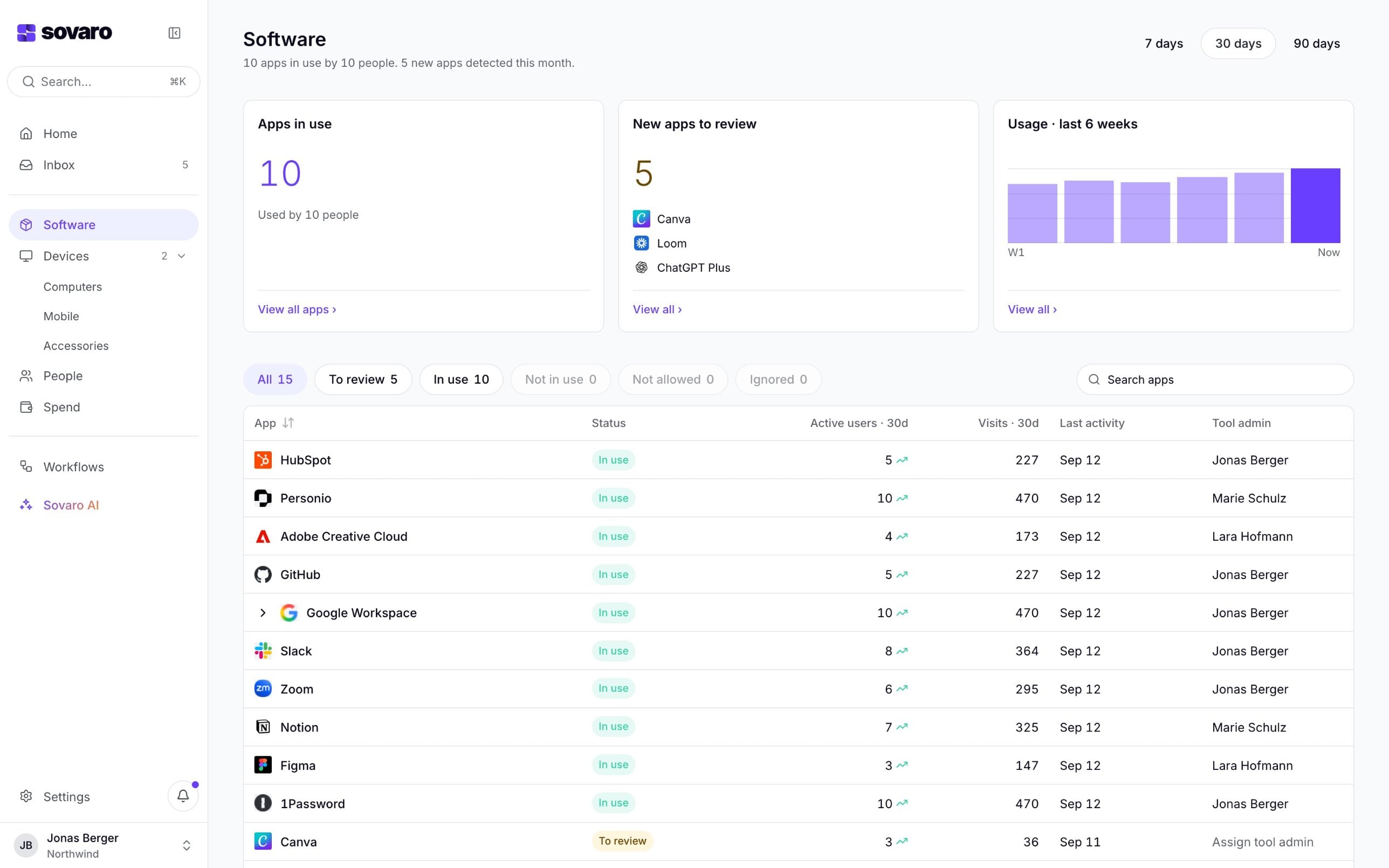
The software overview in Sovaro (demo data): ten apps in use, five newly detected ones waiting for review, including ChatGPT Plus.
Why a login report isn't enough
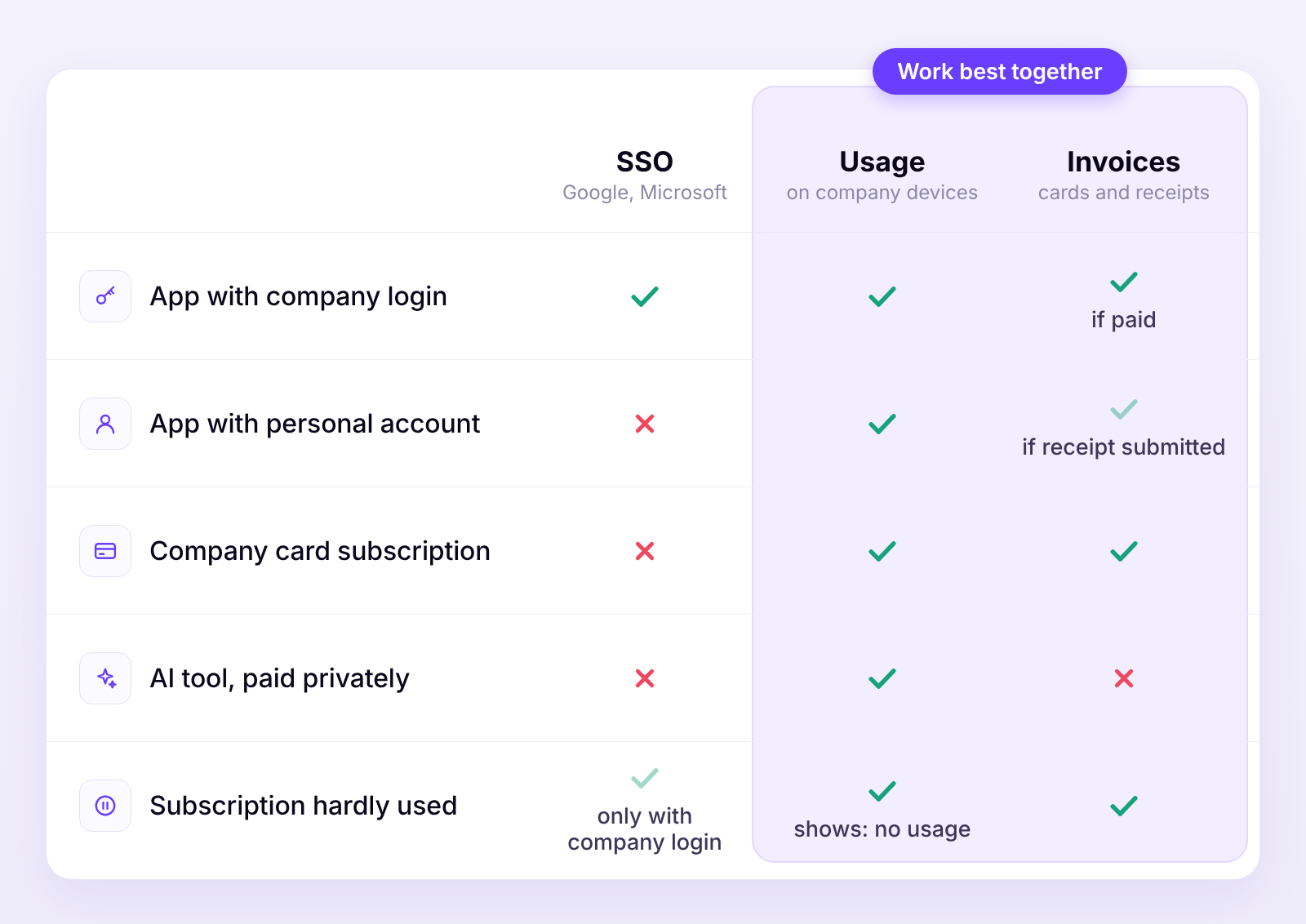
Many start with what Google Workspace or Microsoft Entra already shows: tools people sign into with their company login. That's a good start, but it only shows part of the tools in use. Anyone who signs up with a personal email, books a subscription on the company card and logs in with a password, or pays for an AI tool privately, won't appear in any login report.
That's why Sovaro uses two additional sources: actual usage on company devices and invoices. Together they give you a picture neither source provides on its own.
Step 1: Connect Google Workspace or Microsoft Entra
During setup, you connect your workspace. Sovaro then knows all your employees, and tools detected through usage can be assigned to a person right away. New accounts appear automatically, without anyone maintaining a list.
If you use Personio or HiBob, you can connect your HR system as well. It isn't required for uncovering shadow IT.
Step 2: Roll out the agent on company devices
You send your team a setup link. The Sovaro agent installs itself on the laptop and brings the browser extension along. Devices appear right away. For a first inventory of software usage, allow about a week.
- Installed software: the agent sees which programs run locally on the device.
- Web apps: the browser extension detects which web apps someone uses, based on the tool's domain. That way Sovaro sees who uses which tool.
- Classification: AI checks whether it's a SaaS tool or just a regular website.
The agent belongs on company devices, not personal ones. Detection can also be switched off per employee.
Step 3: Send your invoices to Sovaro
The second source is invoices. There are four ways to get them in:
- Connect your inbox: connect Gmail or Outlook, and Sovaro fetches the invoices itself.
- Forward: forward invoices to your Sovaro address. No need to pre-sort, the AI recognizes what an invoice is and discards the rest.
- One address per tool: each tool gets its own invoice address that you enter as the recipient with the provider. From then on, invoices arrive on their own.
- Upload: drop PDFs directly into Sovaro.
The AI reads the amount, provider and billing period, and you confirm. What matters for shadow IT: Sovaro also detects tools nobody has set up yet. A subscription someone booked on the company card a year ago shows up in the overview.
Step 4: Review your findings
The software overview now shows every detected tool from both sources, with the people using it and its cost wherever an invoice exists. AI tools like ChatGPT appear in the same list. New findings show up under "Newly detected", and for each one the IT admin decides: approve, ignore or not allow. Nothing is blocked or cancelled automatically.
One finding from start to finish
Here's what that looks like, using Loom (demo data):
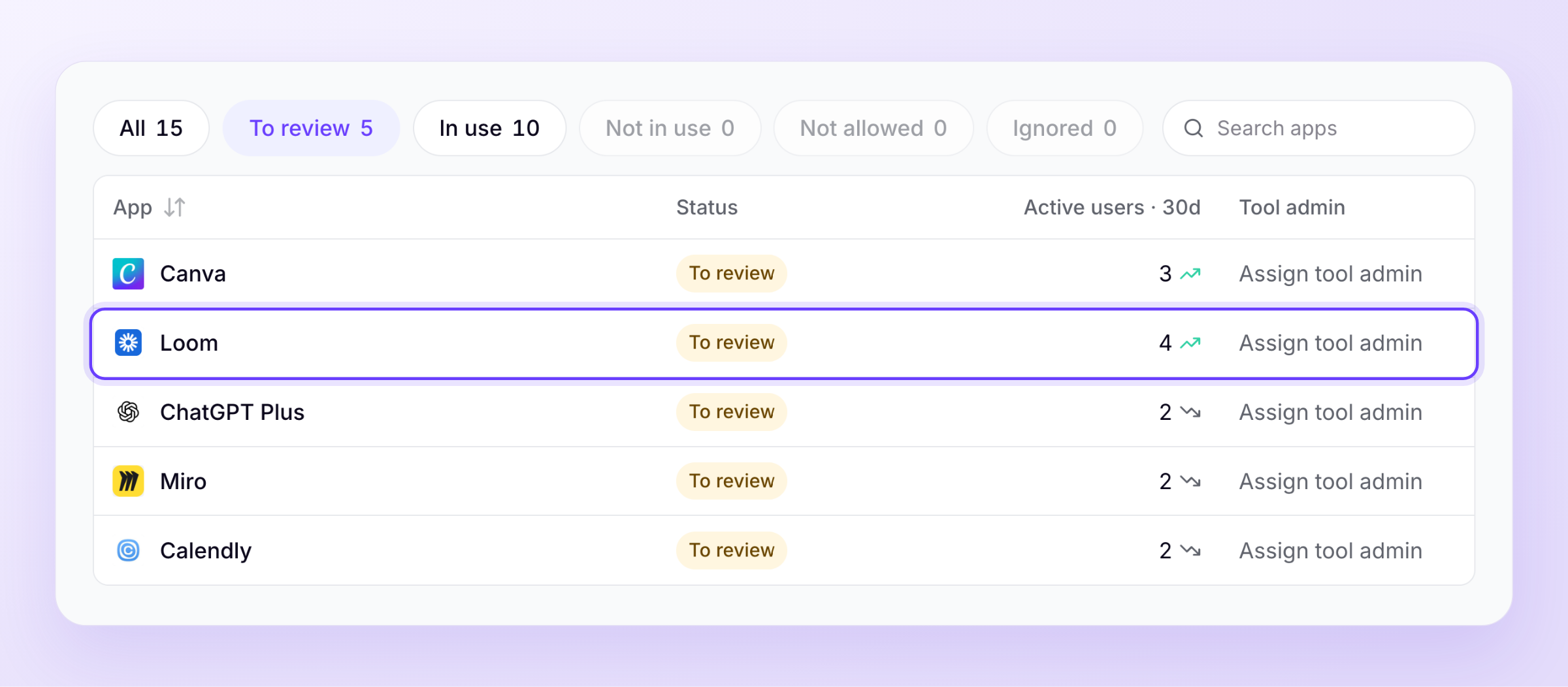
- Detected: at Northwind, Loom appears under "To review". Nobody set the tool up, but four people use it regularly.
- Asked: the IT admin follows up. Sales uses it to record short videos for customers, because there's no official tool for that.
- Matched: the team lead forwards the invoice. Sovaro assigns it to Loom: a subscription for five licenses, paid with the company card. Four are in use.
- Decided: the IT admin approves Loom because it covers a real need. The tool gets a tool admin and a billing owner, and the fifth license goes at the next renewal.
The typical cases
Not every finding goes like that. The most common situations:
- Used, but no invoice yet. Find out whether the tool is free, paid privately or the invoice is simply missing. Then approve it or offer an approved alternative.
- Paid, but hardly used. Sovaro flags licenses nobody has opened in weeks as candidates for review. Before you reduce or cancel, check that all devices are covered and the period is long enough to be meaningful.
- Two tools for the same job. Two teams pay for similar tools. Agree on one and consolidate the subscriptions.
- New AI tool. Clarify the need and review the provider. When in doubt, a company account with clear rules beats "not allowed", otherwise the team moves to personal devices.
Every tool that stays gets two owners: a tool admin who grants and revokes access, and a billing owner who receives the invoices. Renewal and cancellation dates for all tools live in one place.
Step 5: Clean up costs and stay on top of it
As soon as invoices and usage come together, Sovaro flags paid licenses without usage for review. You can also just ask: Sovaro AI answers questions like which licenses have been unused for weeks or which subscriptions renew next.
So the list doesn't go stale again, detection keeps running. New tools appear as soon as someone uses them or an invoice arrives. And when an employee leaves, Sovaro shows which tools that person used. With the on- and offboarding extension, tool admins get a task to revoke access right away.
What Sovaro doesn't see
Visibility only helps if your team trusts it. So here's where the limits are:
- No content. When recording usage, Sovaro sees that someone uses a tool, not what they do in it. Sovaro doesn't read page content, screen content or keystrokes, so no AI prompts either. The only things it reads are the invoices you send to Sovaro.
- No personal devices. The agent belongs on company devices. Whatever someone uses on a personal laptop or phone isn't recorded.
- No smartphones. Sovaro doesn't detect apps on company phones yet.
- No invoice that never arrives. A tool that's paid privately and only used on personal devices stays invisible.
Our advice: tell your team in advance what you're introducing and why. It's about costs and data protection, not about monitoring individuals.
Frequently asked questions
What is your team really using?
Find out which tools are in use and which subscriptions you're still paying for. Employees and devices show up right after setup, and for a first inventory of the tools in use, allow about a week.
See Sovaro with your own data.
Connect Google Workspace or Microsoft Entra and see your devices, apps, and licenses in minutes.
Free up to 10 employees. From 11 employees, 14-day free trial without payment details.